Change the GPA grade scale
If your class or school uses something different than the 4.0 GPA scale (like a 10.0 scale, or 85% == 4.0, or anything else), Power Planner supports that!
Change the defaults
Section titled “Change the defaults”You can edit the GPA scale for ALL classes by going to Settings -> Default grade options.
Change the scale for a specific class
Section titled “Change the scale for a specific class”To change the grade and GPA scale for a specific class, open your class, and then go to the grades page.
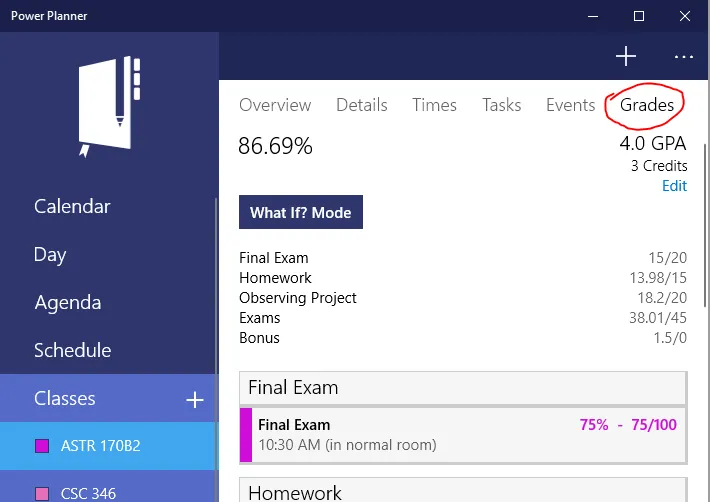
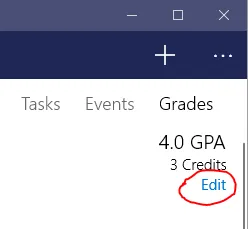
Then, while on the grades page, click the “Edit” text button just below the GPA and credits.
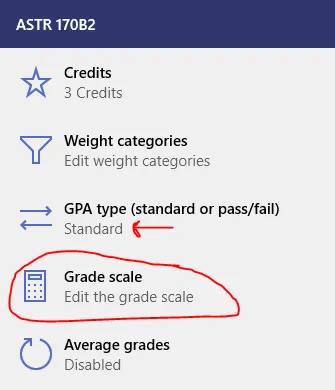
Click the Grade scale entry to edit the grade scales. If you don’t see it, make sure the GPA type is set to “Standard”.
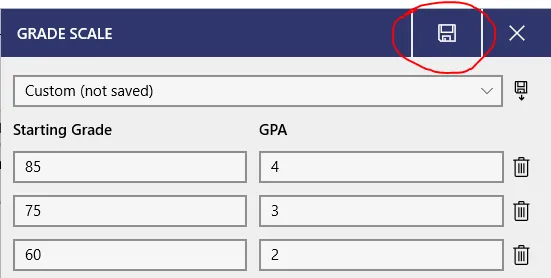
Scroll down, and edit the grade/GPA scale as desired.
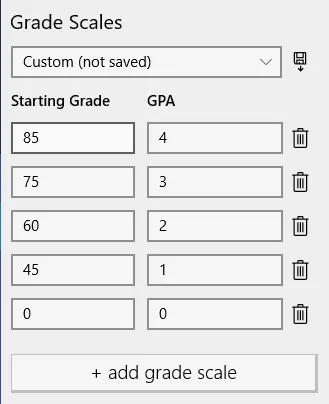
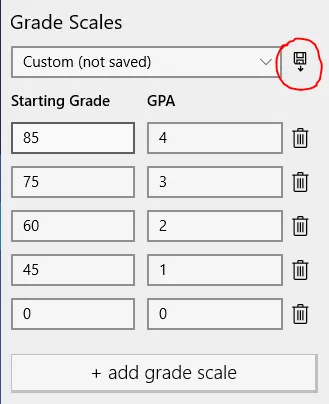
Optionally, to re-use this grade scale across other classes, click the save button next to the “Custom (not saved)” drop down, and then give it a name and click save.
Finally, be sure to click save in the top right once you’re done with all your changes to the class grade options!